Five steps to write a product-photo brief you can actually review
Start with the real product reference, describe a specific scene and check details and cost before approving the image for your store.
 Sowar team
How do you write a useful product-photo prompt?
Start with a clear photograph of the exact item you sell. Describe what should change in the scene and what must match the original, then inspect the result before using it. A detailed brief makes your request clearer; it does not guarantee that the label, colour or product shape will stay accurate.
Use these steps for one image in Sowar before preparing a whole catalogue. The ceramic-mug brief below is a writing example, not a generated result or a customer story.
1. Prepare a reference you can compare against
Use the actual product, not a similar item. Choose an original that shows the shape and details the buyer needs. If glare hides a bottle label or a handle is outside the frame, take a clearer photo rather than asking the model to guess the missing part.
Keep the original unchanged and record the product name and colour variant beside it. A mug photo cannot establish its capacity, and a charger photo cannot establish compatibility. Take those facts from verified product specifications.
2. Separate product facts from scene choices
Describe the surface, lighting and framing in a short sentence. In another, list the visible details that must not change. Avoid requests such as “make it more luxurious” if that could imply a different finish or decoration.
| Part | Vague request | Reviewable request |
|---|---|---|
| Scene | A luxury photo | Pale tabletop, soft side light and a simple background |
| Product | Improve the mug | Keep the handle, rim and colour shown in the reference |
| Frame | Make it work for my store | Show the whole mug with space around it and no added props |
Open a sample brief to adapt to your product
“Use this ceramic mug photo as the reference. Place it on a pale tabletop with soft side light. Keep the handle, rim and colour as shown in the original. Show the whole mug. Do not add writing or props beside it.”
Adapt this example to your real photo before using it. The wording does not prove the accuracy of any output, and opening it does not start a generation.
3. Reject product changes before polishing the background
Open the original and result side by side. Check the rim, handle, label and colour before judging the background and shadow. Reject a changed product even when the scene looks attractive. Return to the real reference and identify the defect before choosing another edit.
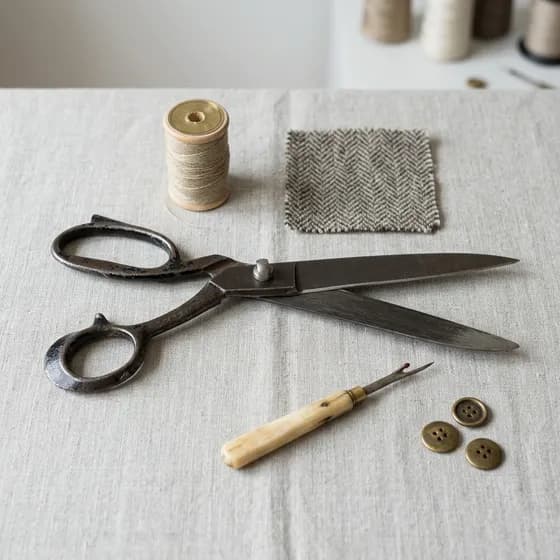
The scissors, thread and fabric on this page’s cover come from the existing scene library. They are not the result of the mug brief and do not prove that a model preserves product details.
4. Change one thing in the next attempt
If the product is acceptable but the background is busy, ask for a simpler background rather than changing the light, angle and colour together. Record what you changed and compare both versions. If the reference is unclear, fix that first; repeating the same request does not guarantee improvement.
Read removing versus replacing a background before choosing the operation, or the vertical framing guide if the problem is a cropped product.
5. Check the cost and the published file
Check the operation’s displayed cost in the app before starting it. Do not assume an edit or another attempt is free, and do not expand to a batch before approving one image. After downloading, review the file at its actual mobile display size and make sure the crop does not hide an important detail.
Start in Sowar with one clear reference and one brief. Use the approved-image handoff guide when you need to deliver selected files. Aim for an image the buyer can understand, not a promised sales increase.