Save a consistent product-photo look without changing the product
Reuse a visual direction in Sowar, then check each item against its original photo. Practical review examples for mugs, perfume and small electronics.
 Sowar team
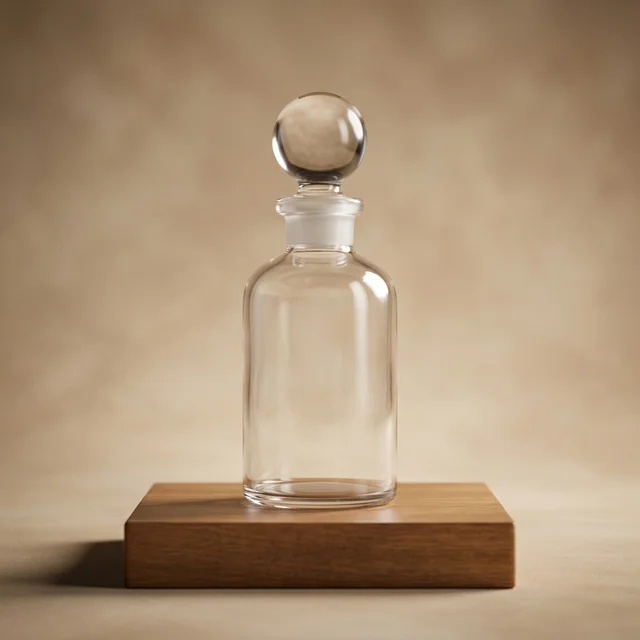
Scene-style reference from Sowar's library, not a generated result for your product or proof of identity preservation.
Keep the presentation consistent, not the product specification
Start with a small visual direction you can repeat: a suitable background, clear lighting and an aspect ratio that fits the destination. Save the direction you use in Sowar, then compare every result with the original product photo. Reusing a look does not guarantee an unchanged colour, label or product shape.
Consistency means the images belong together in one store. It does not mean every product needs the same treatment. A light studio scene may suit a mug; a transparent perfume bottle needs visible edges; a small electronic device needs a view that does not hide its ports.
Write a short style brief
This is an editorial worksheet, not a new built-in control or screenshot:
| Keep consistent | Example direction | Still check |
|---|---|---|
| Background | A neutral surface without clutter | Props do not imply included accessories |
| Lighting | Soft light that shows the edges | Product colour and important details remain clear |
| Framing | Space for campaign copy when needed | The whole product fits, without invented scale |
| Destination | Listing image or vertical story | The actual destination’s final crop |
Avoid a vague direction such as “make it luxurious” if it leads you to accept a different material or colour. Write what you want to see and what would make you reject the result.
Open the saved look, then choose the right original
Open the relevant saved look in your current workspace. The workspace shows saved looks and their direction, with a link to open a look in the generation flow. Check the workspace context: a look saved for one client is not automatically suitable for another.
A look stores the style, direction, colour palette and output ratios, not the original product photo. Applying it restores the style, instructions and first output ratio. Review those settings and select the correct original for the item and variant. Check the displayed cost before generating; a saved look is not a reason to start an entire batch.
Treat a different original as a fresh review case. A background that worked for opaque ceramic may not work for transparent glass or reflective metal.
Use three concrete acceptance checks
These are fictional review examples, not customer results:
- Cream mug: compare its colour and handle shape. Reject an attractive scene if the handle shrinks or an unprovided lid appears.
- Perfume bottle: check the label, cap and glass edges. Do not use shadow to disguise changed lettering.
- USB hub: compare visible ports with the actual model. A different port count is not an acceptable styling variation.
Use a real photograph for a detail that generation does not preserve. Not every gallery image needs to be generated; it needs to answer the buyer's question accurately.
Do not regenerate without a specific reason
Record why you rejected a result: a changed label, a missing edge or an extra accessory. Adjust one relevant element and check the next attempt's cost before continuing. If the original photo already explains the detail, further variations may add no value.
Keep the accepted file linked to the correct product and variant. Downloading is not publishing, and saving a look does not update a Salla listing. After publishing, open the product page and verify the image and placement the shopper actually sees.
Start with one item
Choose one product with a clear original and a known use for the result. Open your current workspace to review saved looks, or use the Salla setup guide when working from a store catalogue. Use the approved-image handoff guide when another person will finish the design.