Choose product gallery images that answer the next buying question
Plan the main image, detail shots and one useful scene for a product page. Includes a gallery worksheet, mobile checks and a cautious way to measure changes.
 Sowar team
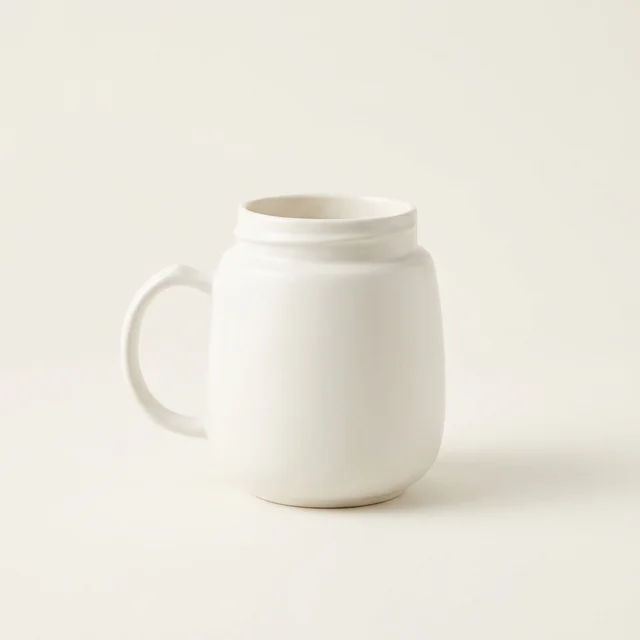
Which product photo should come first?
Start with the image that makes the exact item easiest to recognize at thumbnail size. Follow it with photos that answer the questions the first image leaves open: what is included, which details matter, and whether the product fits the intended use. Keep a lifestyle scene when it adds useful context. Five similar scenes rarely answer five different questions.
For a ceramic mug, that might mean a clear whole-item image, a real view of the handle and opening, a measurement photo, then a kitchen scene. This is a suggested order to test in your own store, not a universal conversion formula or a gallery order that Sowar applies automatically.
Give each gallery slot a job
Write down the question each image answers before creating another one. Keep real reference photos beside the plan. If two slots answer the same question, choose the clearer image and use the other slot for missing information. Do not add a photograph merely to reach a particular count.
A desk organizer needs a clear view of its compartments; a packaged snack needs readable packaging and an accurate quantity; a USB hub needs real port details. The useful sequence depends on the item. Do not use a generated angle to claim a feature that is hidden in the source photograph.
| Slot and question | Suitable evidence | What to avoid |
|---|---|---|
| Main: which item is this? | Complete mug with its handle and actual colour visible | A cropped handle or props that dominate the thumbnail |
| Detail: what will I hold and drink from? | Real close-up of the handle, rim and opening | An invented interior or a smoother finish than the real item |
| Fit: is it the right size? | Measured dimensions supported by a real photograph | Inferring capacity from a generated hand or nearby object |
| Context: how could it look in use? | One reviewed scene with decorative props clearly distinguished | Implying that the saucer or spoon is included |
Use Sowar for the missing scene, then check the item again
If the gallery lacks a useful setting, start with a clear reference of that exact product in Sowar’s image-generation workspace. Describe a simple setting, keep the product unobstructed and choose an aspect ratio suited to the intended slot. Review the displayed operation cost before generating. A prompt requests preservation; it does not guarantee it.
Compare the downloaded result with the reference before adding it to the gallery. Check colour, shape, printed marks and the visible parts. Reject a scene that changes the product, even if its composition is attractive. If the missing slot needs a measurement, an underside or readable label text, take a real photograph rather than asking the model to supply evidence.
Copy this manual gallery worksheet
Product and exact variant: ____
Buyer question still unanswered: ____
Image file and source photograph: ____
Intended gallery position: ____
Included items visible: ____
Decorative props to explain: ____
Reviewer, decision and date: ____
This is a worksheet for your own notes, not an automatic Sowar checklist. Complete one worksheet per proposed image. Keep rejected versions out of the folder you hand to the person updating the store.
Check the sequence where buyers will see it
- Open the product listing on a phone. Can you identify the item from the first thumbnail without reading the title?
- Open the product page and move through every image. Check that each adds information and that the main image is not duplicated unnecessarily.
- Select each colour or size option. Confirm that the photos and option name still describe the same item.
- Inspect the store’s crop, zoom and loading behavior. A good downloaded file can be unclear after the store crops it.
- Check captions and the written contents list. Remove or explain props that could be mistaken for included accessories.
Do this in the actual store preview or published page. Downloading a file from Sowar does not verify its placement in your storefront. For dimensions, use the mug size and fit guide; for colour options, use the variant-image review.
Measure the change without giving photos all the credit
Save the previous image order and record the date of the replacement. In your existing store reports, compare product-page visits, add-to-cart activity and completed orders using consistent definitions. Record price changes, promotions, stock availability and changes in traffic source alongside the image change.
A handful of orders or a busier weekend cannot establish that the new gallery caused a difference. If your store already supports a properly configured experiment, use it; otherwise describe a before-and-after comparison as observational.
Start with one product and one missing visual job. Open Sowar using the workspace button below when a scene would help, or take the missing real detail photo first. When the images are ready, use the approved-file handoff guide to keep the selected versions together.