Product colour photos: keep each image matched to the right variant
Prepare a real reference for each colour, review the scene and check store image assignments before the buyer chooses a variant.
 Sowar team
Show the selected variant, not an attractive substitute
Use a separate real reference for every colour you sell. A generated scene is useful only after you compare it with the reference for that exact variant. Do not recolour a photograph and treat the result as evidence that another stocked colour looks that way.
This guide is for a merchant preparing a small product gallery. It does not claim that Sowar synchronizes colour options, checks stock or publishes variant images automatically. Your store still needs the correct option names and image assignments.
Make a variant list before creating scenes
Start with one product available in several colours, such as a ceramic mug or a desk organizer. In your own worksheet, record the product identifier, the exact option name used in the store, the original photograph and the image you intend to publish. Keep a separate row for each variant. This is a manual worksheet, not an app feature.
Photograph the actual variants under consistent light. Keep the original files. If lighting makes two finishes hard to distinguish, obtain a clearer real photograph before making a scene; a prompt cannot establish the true colour.
| Check | Accept | Hold for review |
|---|---|---|
| Variant identity | File and store option refer to the same actual item | A filename says cream but the image was made from the white variant |
| Colour and finish | The result remains consistent with the real reference | A matte organizer looks glossy or a pale mug becomes saturated |
| Shape and details | Handle, edge and visible markings agree with the reference | The scene changes the handle or invents a printed label |
Review one scene against its own reference
Keep the real photograph open beside the downloaded result. Check the rim, handle, surface and any label before judging the background. Reject an output that changes the item even if the scene is attractive. A different colour option needs its own source and review, rather than approval inherited from the first option.
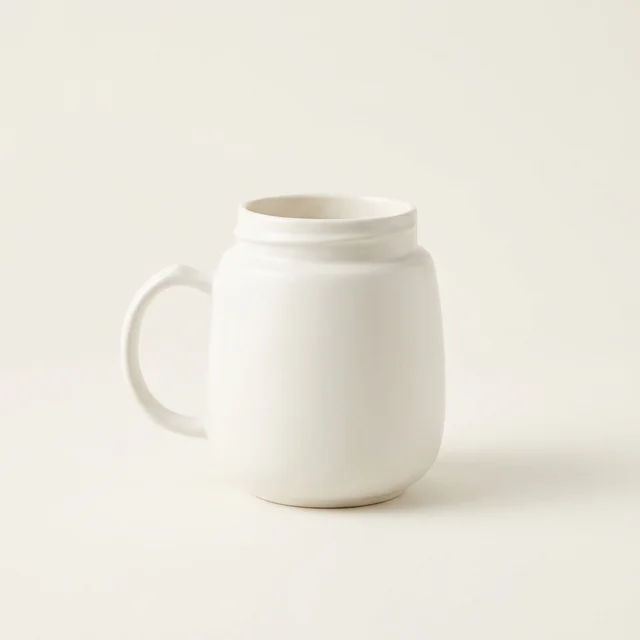
The cover is an example from Sowar’s existing scene library. It is not a colour chart, a matched set of variants or a result generated for this guide. Screens and lighting can affect appearance; do not promise identical colour on every display.
Check the buyer’s selection on a phone
- Open the actual product page and select each available colour.
- Compare the option name, main image, gallery and written description.
- Check that a crop does not hide the detail that distinguishes the variants.
- Record where each approved image was used. Correct a wrong assignment before publishing more scenes.
For a shared lifestyle image, explain which variant is shown instead of implying it represents every option. If a buyer asks about a colour you cannot verify, show the original and ask your team to confirm the item.
Start with one product, then keep the approved files organized
Once the variant references are ready, try one scene in Sowar and check the current operation cost in the app. Use the approved-image handoff guide when sharing files, and the photo-accuracy review when investigating a mismatch. Clear option selection is the goal; no conversion or return-rate result is promised.