Hand off approved product images as a ZIP without mixing versions
Review your Sowar gallery, download selected images as a ZIP and prepare a clear product-and-use list before handing the files to your designer.
 Sowar team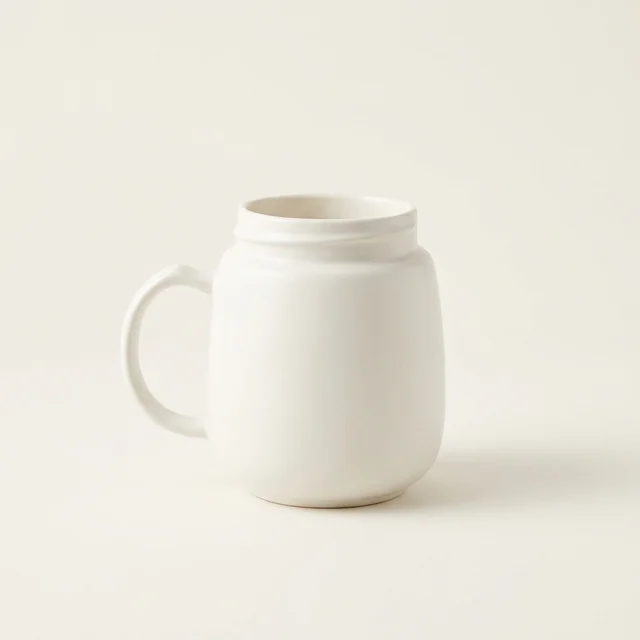
How do you hand off approved images without mixing versions?
Review the images in your Sowar gallery, select the versions you want to deliver, then choose “Download ZIP.” Open the archive on your device before sharing it and match each image to its product, variant and intended use in a separate list. The ZIP collects your selected files. It does not pick the best images or add product codes and designer instructions automatically.
Suppose you are preparing a cream mug and a honey jar for your store. You have a mug listing image, a vertical story version and a jar scene. Sending every generation attempt makes the designer guess which version to use. Deliver only the three accepted images, with a clear destination for each.
- Review each image
- Select approved versions
- Download the ZIP
- Open and match the files
Approve the image before selecting it
Open each image large enough to inspect its edges and lettering. Compare the mug’s colour and handle with the original photo. Read the jar label instead of judging only the background. Do not include an inaccurate image and expect the designer to know what needs fixing.
Keep a version that needs work out of the delivery set and record the specific problem. Selecting a checkbox is not a team approval workflow: you make the decision to use the image. For products with several pieces or accessories, use the gift-set contents checklist.
Select a small set on the current gallery page
Open Gallery in your workspace and use the image checkboxes. Check the selected count before downloading. A ZIP supports up to 10 images, with a maximum of 10 MiB per image and 30 MiB of image files in total. Grouping by product or use is easier to review than one archive containing everything.
Changing the gallery page, search or filter clears the selection and cancels archive preparation if it is running. Finish the current set first, then move to the next. Do not expect an image selected on a previous page to remain in your next download.
| Name to assign after download | Product | Use and instruction |
|---|---|---|
| MUG-CREAM-main-v1 | Cream mug | Listing image; do not replace with the story version |
| MUG-CREAM-story-v1 | The same cream mug | Vertical version; check the crop in the publishing app |
| HONEY-JAR-scene-v1 | Honey jar | Display scene; check the label and do not add an unapproved price offer |
Open the ZIP, not just the download notification
After choosing “Download ZIP,” wait for the browser download to finish. Its default name is sowar-images.zip. Make sure you open the newest download if an earlier archive has the same name. A download-started message does not prove that the browser saved the file successfully.
Extract the archive, count the images and open every file. Compare the version, orientation and edges with what you selected in the gallery. Filenames contain image identifiers, not product names or SKUs. If you rename files on your device, preserve the original extension and keep an old-to-new name map when needed.
Downloading existing images does not start a new generation. It also does not add text, resize the images, repair a label, publish them to Salla or send them to your designer. Those are separate steps.
A short note to accompany the files
“These are the three images I reviewed for the cream mug and honey jar. Use main for the listing and story for the social story. Do not change the product colour or add accessories. Check the attached filename list before publishing. If you need to crop an image or add text, send me the final design preview.”
Adapt this example to your agreement with the designer. Sowar does not send the message automatically. Keep the note and name map in a separate document; the ZIP does not create them.
Test the handoff with one product
Start with two images for a product you know: one for the store and one for a campaign. If the designer can tell them apart from the names and note without asking you, apply the same list to the next set. Keep the original reference and rejected versions outside the final delivery folder.
Open your Sowar workspace, then Gallery, to package images you already have. If you still need the vertical version, follow the 9:16 composition guide. Before publishing store images, see the filename and alternative-text guide.