Refresh a seasonal product photo without losing the evergreen original
Keep a clean original, review one seasonal product scene and record where it appears so you can retire an expired campaign image without unnecessary regeneration.
 Sowar team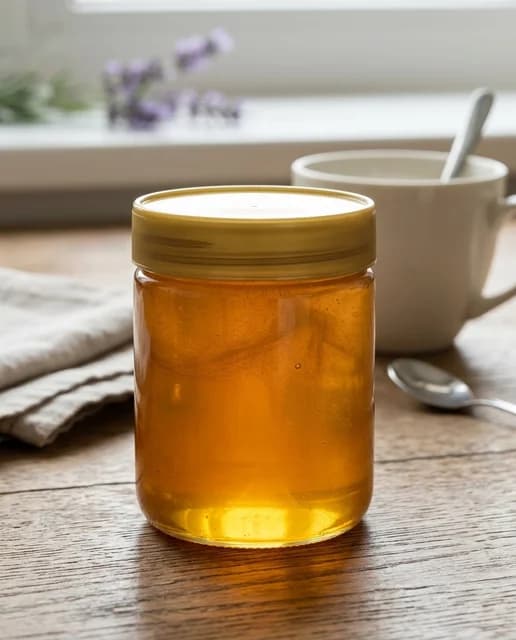
Keep the original and set a campaign review date
Before making a seasonal image, keep a clean copy of the original product photo and decide where the new image will appear and when you will review it. Try one treatment, inspect the actual file, then publish it in the intended location. A temporary campaign image should not become your only usable product photo.
Sowar can help prepare a different scene from a reference image. Choosing the publication date, checking the offer and removing outdated imagery remain tasks you need to manage. This guide does not assume automatic campaign scheduling or automatic image restoration.
Separate the product image from the campaign image
Consider an illustrative honey-jar listing. The product page needs a clear view of the jar, label and advertised size. A campaign may also need a seasonal setting. That setting does not change what the buyer receives: a spoon, lantern or decoration is not included unless the product description actually says so.
- Keep a clear original reference without a temporary offer.
- Save the reviewed campaign file separately.
- Record where you published it and when to review it.
This is an organizational method, not a campaign-management feature in Sowar. Do not treat generation history as your only backup of original product photography.
Write a brief that does not change the product
Before generating, decide what may change and what must stay the same. A different campaign setting does not require redesigning the product.
Read an illustrative seasonal scene brief
“Keep the same honey jar as the main subject. Use a simple, warm tabletop setting with limited seasonal decoration in the background. Do not change the label or lid colour. Do not add extra jars that could look like part of the order. Keep the product clear.”
This is an illustrative editorial brief, not a guarantee that the model will preserve every detail or an actual Sowar output. Use the controls available in the interface, then inspect the generated image. Good instructions do not replace checking the label, shape and details.
Test one image before preparing the rest of the range
Start with one reference image and check the operation’s cost or credit usage under your plan before generating. Review the output at full size, then at a small size similar to a mobile product card.
- Is the product clear, or has decoration become the main subject?
- Do the label, shape and quantity match the reference?
- Do props imply something extra is included?
- Does the crop work in the intended placement?
Download the file you intend to use and open it outside the preview. A visible preview is not evidence that the image has been published to Salla. A successful generation is not proof that the result is suitable for sale.
Record where the seasonal version appears
Before replacing an image, keep the current version somewhere you control. A product page might show the new file while a social post, landing page or advertisement still contains the old one.
As an organizational example, record whether the file appears in the product gallery, campaign page or social post. Keep its link and verify the offer wording and dates. Inspect the product page after publishing. Uploading a file does not prove that images on other channels have changed.
When the promotion ends, check the message before making another image
Open the placements you recorded. Remove or replace versions that no longer reflect the offer, then review the product page on a phone. If the product has not changed, restoring the clean image may be enough. You do not necessarily need another generation.
An image without a discount, date or unmistakably seasonal element might remain useful. Decide based on what the buyer sees, not simply when you created the file.
When is this worth trying?
Try it when you already have a good product and source photo, but need a different visual setting for a defined campaign. Do not use it to compensate for missing product information or depict packaging and gifts that are not supplied. A better setting does not guarantee more sales, and generation does not verify every detail of the image.
Prepare one campaign image
Keep its original image. Review the cost and downloaded result before using it in your shop. Salla merchants install and subscribe through the Salla App Store.