Add Arabic offer text to product photos with Sowar templates
Add a headline, price and call to action to an existing product photo. Check Arabic text, template credits and the exported file before publishing.
 Sowar team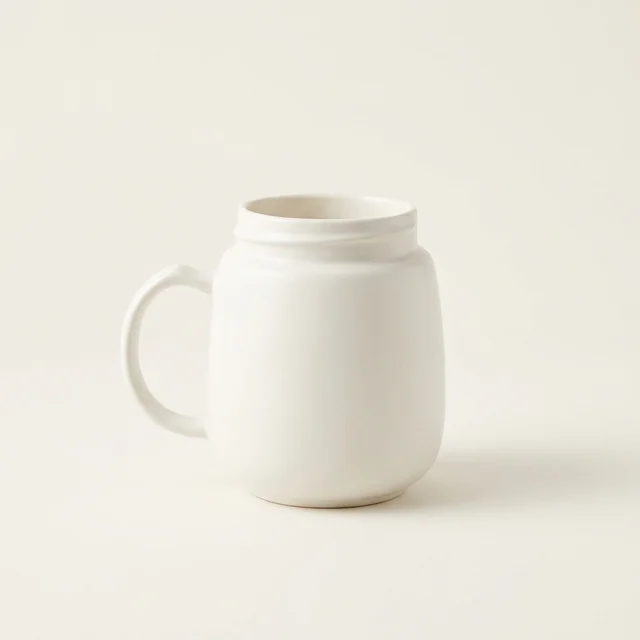
Use text fields, not an image prompt
Use Sowar’s template text fields instead of putting your price and promotion in an image-generation prompt. Choose a product image, enter the headline, price and call to action separately, then render and inspect the exported file. The template places text onto the design rather than asking the image model to draw letters. You still need to check Arabic letter joining, numbers and cropping before publishing.
A good photo of a mug or honey jar does not need a new scene just because the campaign wording changes. This workflow prepares a campaign image from an existing photo. It does not change a Salla product price or publish an advertisement for you.
Prepare three short lines, not a paragraph
Choose one message. For a fictional mug campaign, the fields could be a short coffee-break headline, the verified current price, and a “View details” call to action. Write the Arabic version your customers should read directly into the corresponding fields; do not assume entering English will translate it. Never copy a placeholder price into a real campaign. Only mention a discount or free delivery when the actual offer and its conditions support it.
Keep longer conditions in the product page or accompanying post. The price field is not the place for a whole sales pitch.
| Field | Illustrative example | Check before use |
|---|---|---|
| Headline | Coffee break | One short message |
| Price | Verified product price | Matches the product page |
| Call to action | View details | The post includes the destination link |
Prepare the product image first
Choose one clear product photo with room around its handle, lid or other important edges. If you use a previously generated scene, compare it with the original first. Text cannot repair a changed label or an inaccurate product colour. Keep the promotional image separate from the clean main photo buyers use to examine the item.
The template editor accepts a product-image URL or an image selected from your Sowar gallery. Check the source preview before continuing. If the exported design cuts off part of the product, use a more suitable template or a source with additional space, rather than covering the missing area with decoration.
Set the fields, then render one review copy
Open Templates and choose a suitable design. Enter the headline, price and call to action in their separate fields. Adjust the available text, background and accent colours, and add a logo if you have a suitable image URL. Different templates can arrange their fields differently, so judge the chosen design, not a generic example.
Changing a field does not update an earlier exported file. The general template preview is not confirmation that your new wording has been applied. Render the template, then inspect the resulting image. A render uses the current template credit charge, not the AI scene-generation price. Changing the wording and creating another file requires another render. Check the current operation cost in the app or plans; do not assume unlimited free revisions.
Check the result at phone size
- Read the complete headline. Are Arabic letters joined correctly and every word present?
- Compare the price and currency with the product page, especially when mixing Arabic text, digits and symbols.
- Inspect line endings and image edges. Shorten text that becomes too small or gets cut off.
- Check contrast and keep the logo away from important product details.
- A call to action printed inside an image is not a clickable button. Add the destination link wherever you publish the campaign.
Download the right file and check its destination
Once approved, download the file and open the saved copy itself. Do not rely only on the editor preview. If you changed a field, confirm you downloaded the newly rendered result rather than the previous version. Keep the file locally; do not assume a template render is automatically added to the generated-image gallery.
Before publishing, open the product link on a phone and check the name, price and selected variant against the image. When an offer ends, remove or replace the campaign image wherever you used it. Editing a product page does not update text already embedded in a published image.
Start with one existing product image in Sowar and make a readable template instead of regenerating a scene only to change its wording. Salla merchants install and subscribe through the Salla App Store. Review current plans before extending the workflow to a full campaign.