Salla product images: filenames, alt text and the published-page check
Prepare descriptive filenames and useful alternative text, then check clarity, file size and the published product page without search-ranking promises.
 Sowar team
What should you check before publishing a product image in Salla?
Choose an accurate image, give the file a descriptive name, then write useful alternative text where your store editor supports it. After uploading, open the product page and check image clarity, crop and loading on mobile. Creating an image in Sowar does not mean your store’s alt text or SEO settings have been updated.
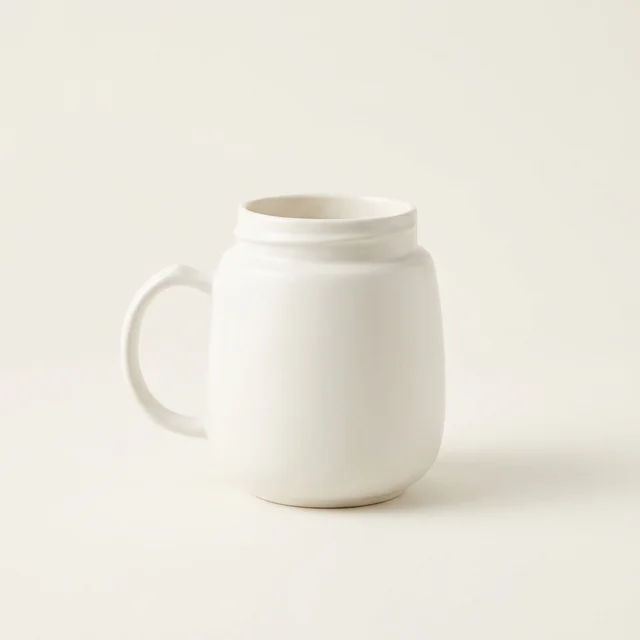
Start with one item, such as a cream mug. Help the buyer understand what is shown; do not turn the filename into a keyword list or expect a guaranteed search position.
A filename is not a sales pitch
A name such as cream-ceramic-mug-front.webp identifies the item and view more clearly than final-new-3.webp. Keep the extension consistent with the actual format: renaming jpg to webp does not convert an image. If your store platform renames uploads, inspect the result instead of assuming the local name was preserved.
Keep your product identifier in a handoff list when needed internally. Do not turn alternative text into a list of SKUs or properties that are not visible.
Compare three descriptions for the mug image
- Unhelpful: “Product image.”
- Stuffed: “Best cheap mug gift coffee deals buy mug.”
- Useful for this example: “Cream ceramic mug with a handle, front view on a pale background.”
Do not add capacity or heat resistance unless verified and relevant. Put specifications and use conditions in the product information; the image alone does not establish them.
Balance detail with download size
Prepare a version suited to the product display area rather than uploading an unnecessarily large file. Compare the optimized version with the original: is the label readable, is the colour faithful, and are the edges intact? Do not use one compression setting blindly for every image. A labelled jar needs a different visual check from a simple background.
Inspect the page on a normal connection and a phone, and open the image at the size buyers will use. Fast loading does not compensate for blur; a bigger file is not better if it adds no useful detail.
Check the published page, not just the upload
- Open the correct product and verify its variant, colour and image order.
- Check the main image crop on mobile, not only in the admin preview.
- Inspect the live alternative text where available and make sure surrounding copy describes the same item.
- Keep the original and publishing copy. Review available Search Console data later; an image appearing on a page does not prove indexing or increased sales.
Google’s official image guidance recommends short descriptive filenames, useful alt text and clear, efficiently delivered images. These support understanding and accessibility, not guaranteed visibility.
New to uploading from Sowar? Follow the one-product workflow from connection to storefront verification. For several files going to a designer, use the approved-image handoff guide.