AI perfume product photos: check the label and glass before publishing
Choose a scene for a perfume bottle, then check its name, liquid colour and cap before publishing to Salla. Includes a ready-to-adapt brief and review checklist.
 Sowar team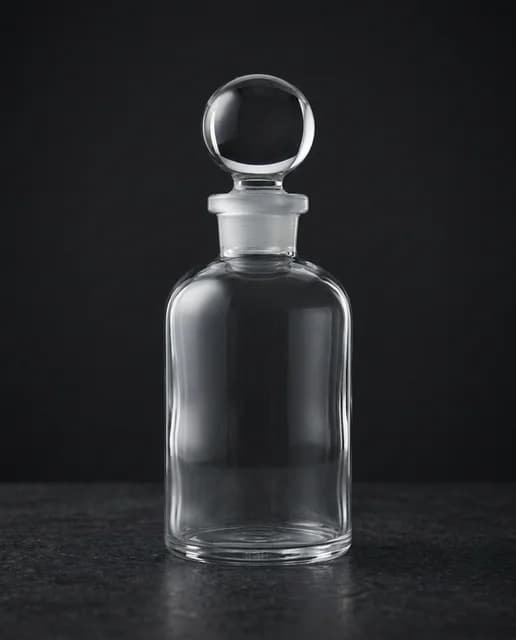
How do you make an AI perfume photo suitable for a product page?
Start with a clear photograph of the bottle you sell. Choose a simple Studio scene to show the item, or Luxury for an additional marketing image. Compare the result with the original: product name, printed bottle size, liquid colour and cap shape. If any of these change, do not publish the image just because the lighting looks good.
The cover of this guide is a scene-library example showing lighting. Its bottle has no label, so it is not evidence that generation will preserve your perfume name or packaging details.
Prepare a reference you can judge against
Photograph the whole bottle from the front, with the cap in place and the label readable. Avoid a window reflection across the name or a background that hides the glass edges. Keep the original open while reviewing; memory is not reliable enough to catch a changed letter or a subtle colour shift.
Use the exact bottle variant. If you sell two sizes, do not use the smaller bottle as the reference for the larger one: proportions and lettering may differ. If a box is included, show it in the reference or in a separate real photograph rather than asking the model to guess its packaging.
| Purpose | Useful starting point | What to inspect |
|---|---|---|
| Main product image | Studio with a quiet background | The full bottle and a clear name at thumbnail size |
| Additional marketing image | Luxury with side lighting | The background does not hide edges or change the liquid colour |
| Label or package contents | A clear original close-up | The lettering and details match what the buyer receives |
Try one bottle in Sowar
Open your Sowar workspace and select the product from your connected Salla catalogue or upload a reference photograph. In Ready Scenes, choose Studio or Luxury for the purpose above. Start with one image and review the size and displayed cost before generating. You do not need several variations to discover whether the reference is usable.
Use the additional instructions to describe what must stay unchanged. Changing the scene should not change the product, but instructions alone cannot guarantee an accurate result.
Open a brief to adapt to your bottle
Keep the bottle, cap, label and liquid colour exactly as in the reference. Show the full bottle and readable name with restrained reflections. Do not add a box, ingredients or new text.
This is a prepared example for the additional-instructions field, not a live generation. Select the scene in the interface and remove any detail that does not apply to your item.
Inspect these details at full size
- Name and size: Match letters, logo and printed capacity to the original. A word that resembles the brand name is not the correct name.
- Glass and liquid: Check the bottle edges, colour and fill level. A bright highlight can make tinted glass look clear.
- Cap and neck: Check their shape, height and connection. Reject a cap that differs from the bottle being sold.
- Included items: Reject an added box, second bottle or accessory that is not included. Avoid roses or oud that imply ingredients you have not verified.
- Thumbnail: Reduce the image to roughly the size of a mobile product card. The bottle should remain clear without cropping its cap or base.
Publish to the right product
Once approved, download the image or use publishing to Salla when your store is connected. Check the selected product and intended size or variant before confirming, then open the storefront page on a phone. A successful upload does not establish that the details or image order are correct.
Keep an accurate original photograph for details and use an additional scene when it helps a buyer see the product. Better presentation is worth testing; its effect on sales still needs to be measured in your own store.
Need to connect Salla first? Read the quick-start steps, or review image filenames and alt text before uploading.