Product packaging changed? When to update your store photos
Plan a packaging photo changeover, show both designs during mixed stock, and keep changes to quantity or contents visible to buyers.
 Sowar team
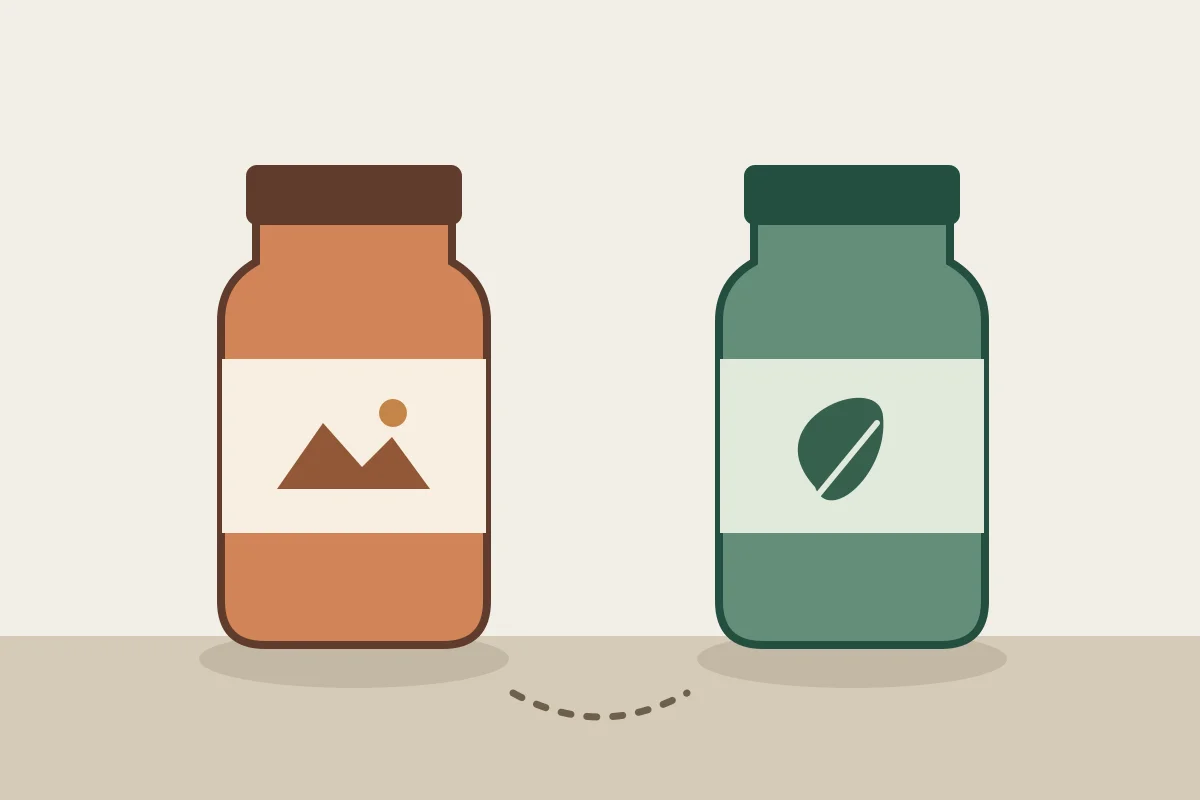
Should you show the new packaging as soon as it arrives?
Yes, if every new order ships in that package. If your warehouse is shipping both designs for the same product, show real photos of both and explain what customers may receive near the buy button. Don’t show only the new pack while older stock can still ship, and don’t leave the old pack in the gallery once it’s gone.
This is for a packaging redesign. A change in weight, size, ingredients or item count changes what the buyer is choosing. Update that information instead of treating it as a picture swap.
Check what is actually shipping
Ask your fulfilment team which pack they pick today for each store option. Marketing might have the new design while a second location still dispatches the old one. Check every location that fulfils the listing before swapping the main photo.
Lay out both samples and read their labels. Check net weight or volume, contents and the store option each one belongs to. Two packs can look nearly identical and hold different quantities. A photograph will not resolve that.
| Stock situation | Photos to show | Text near the buy button |
|---|---|---|
| Only old packaging ships | One real photo of the old pack; prepare the new one off-page | Describe the version shipping now |
| Both designs ship for the same product | One real photo per design; do not pose them as a bundle | Either design may arrive depending on stock; the order contains one pack |
| Only new packaging ships | Make the new pack the main photo and remove the old one | Remove the changeover note when it is no longer true |
| Quantity or specifications changed | Separate matching images for each purchasable option | Put the actual differences in the option name and details |
Capture the label before styling the scene
For a coffee bag redesign, take a real front photograph with the name and weight readable, and a separate label close-up if needed. If a soap bottle has a new pump, show the actual pump and how it opens. If a supplier changed the number of tissues per box as well as its design, show the current count instead of relying on a generic packaging note.
Use Sowar to prepare an optional styled image from a clear reference of the pack you selected. Check the displayed operation cost first and compare the download with the source. If a number, logo or cap shape changed, don’t publish that result. Keep the real label photograph; a styled image is not evidence of package contents or specifications.
Copy and adapt a temporary changeover note
“We’re updating the packaging design. You may receive either design depending on stock. Your order includes one pack, with the weight and contents shown for this option.”
Use that last clause only if you have verified the weight and contents. Don’t promise buyers a choice of pack unless the store actually offers one.
Close the changeover after checking the last shipping location
Record the stock check date, approved image file and who will update the store. Open the page on your phone after updating it. Select the right option, inspect the thumbnail and detail pictures, and see whether the note is readable next to the purchase choice. Check the collection card separately: it can still show the old image after the gallery changes.
Start with one pack and one supporting scene after approving the source photo. For a connected store, see the Salla image update steps. If another teammate uploads the files, share them using the approved-image handoff checklist.